Cortisone Injections
Cortisone injections are performed as a treatment for pain, often by causing a break in the inflammation/pain cycle, associated with a variety of musculoskeletal disorders.
The post Keeping Your Health Information Even More Secure appeared first on SRG Radiology | Radiology | Ultrasound | New Zealand | Auckland.
]]>

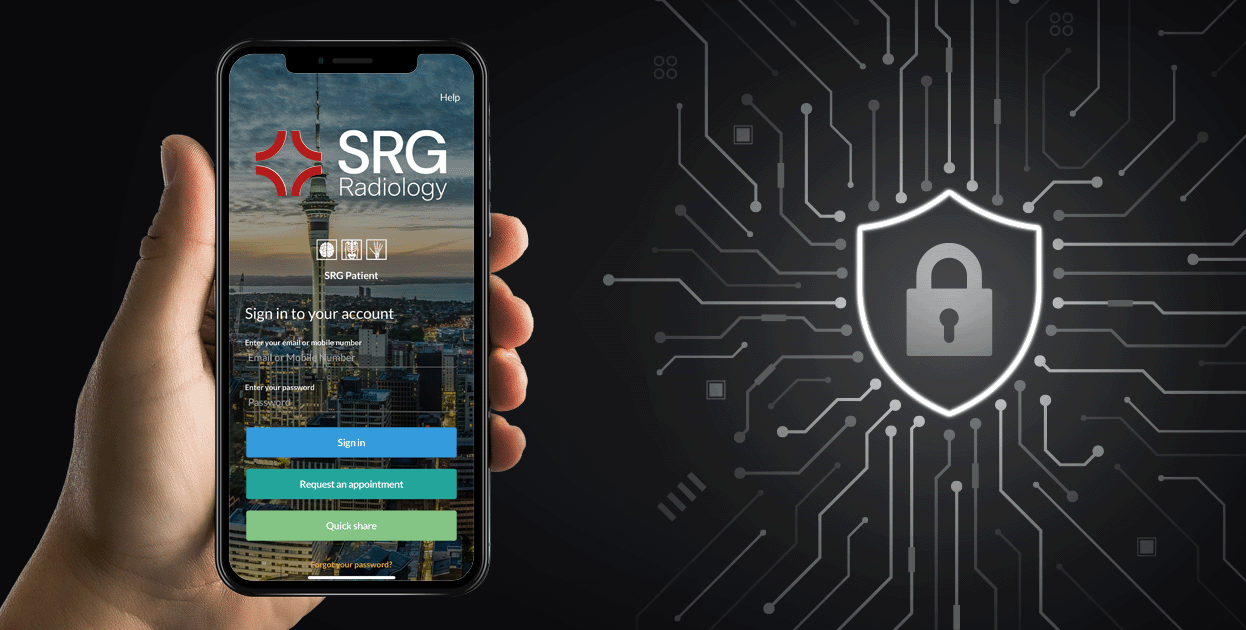
To further safeguard your personal health information, we’re now offering optional Two-Factor Authentication (2FA) on our patient app.
2FA helps ensure that only you can access your account—even if someone else knows your password. It’s quick to set up and easy to use, providing extra peace of mind when accessing your imaging results or managing appointments.
Enabling 2FA is optional but highly recommended.
When you log in, you’ll see a prompt asking if you’d like to enable Two-Factor Authentication (2FA). You have three options:
You can choose between two verification methods:
If you choose to use an authenticator app, you’ll have the option to scan a QR code to quickly set it up on your mobile device.
If you prefer email verification, simply select that option, enter your email address, and then check your inbox for a verification email. Click the verification button in the email to complete the setup.
The post Keeping Your Health Information Even More Secure appeared first on SRG Radiology | Radiology | Ultrasound | New Zealand | Auckland.
]]>The post Medical Imaging for Sports Injuries and Pain Management appeared first on SRG Radiology | Radiology | Ultrasound | New Zealand | Auckland.
]]>
At SRG, we understand the importance of timely results. We strive to provide prompt and accurate reports, allowing you and your healthcare provider to make informed decisions about your health. Our personalised approach ensures that each patient receives the care and attention they deserve.
The post Medical Imaging for Sports Injuries and Pain Management appeared first on SRG Radiology | Radiology | Ultrasound | New Zealand | Auckland.
]]>The post Women’s Health appeared first on SRG Radiology | Radiology | Ultrasound | New Zealand | Auckland.
]]>The post Women’s Health appeared first on SRG Radiology | Radiology | Ultrasound | New Zealand | Auckland.
]]>The post Men’s Health appeared first on SRG Radiology | Radiology | Ultrasound | New Zealand | Auckland.
]]>
Radiology plays a key role in helping diagnose a range of men’s health issues. Your health is our priority. Our dedicated men’s health services provide expert imaging solutions tailored to meet the unique needs of men at every stage of life. With advanced technology and experienced radiologists, we offer precise diagnostics for early detection and effective treatment.

At SRG, we understand the importance of timely results. We strive to provide prompt and accurate reports, allowing you and your healthcare provider to make informed decisions about your health. Our personalised approach ensures that each patient receives the care and attention they deserve.
The post Men’s Health appeared first on SRG Radiology | Radiology | Ultrasound | New Zealand | Auckland.
]]>The post Pain Management appeared first on SRG Radiology | Radiology | Ultrasound | New Zealand | Auckland.
]]>
At SRG Radiology, we understand that chronic pain can significantly impact your quality of life. Our comprehensive pain management services are designed to diagnose, treat, and alleviate various pain conditions using advanced imaging technologies and expert care. Whether you’re dealing with back pain, joint pain, or nerve pain, SRG Radiology is here to help you find lasting relief.
SRG Radiology combines cutting-edge diagnostic imaging with personalised treatment plans to effectively manage and reduce pain. Our team of experienced radiologists and pain specialists works collaboratively to identify the root cause of your pain and develop a tailored approach to your needs. Here are some reasons why patients trust us for their pain management:
The post Pain Management appeared first on SRG Radiology | Radiology | Ultrasound | New Zealand | Auckland.
]]>The post PET-CT Scans now at SRG Radiology appeared first on SRG Radiology | Radiology | Ultrasound | New Zealand | Auckland.
]]>The post PET-CT Scans now at SRG Radiology appeared first on SRG Radiology | Radiology | Ultrasound | New Zealand | Auckland.
]]>The post Prostate Cancer Imaging appeared first on SRG Radiology | Radiology | Ultrasound | New Zealand | Auckland.
]]>
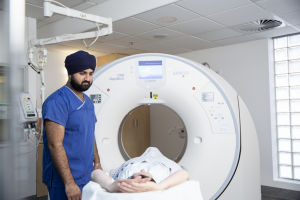
We understand that many people suffer from anxiety or claustrophobia, making an MRI a daunting experience.
At SRG we are here to help, and our highly experienced staff are trained to assist patients who may be claustrophobic or highly anxious.
Latest MRI technology offers a range of features that can help improve the experience and comfort level for these patients. We do also recommend that our patients speak to their referring practitioner, and to our friendly booking team to discuss all options. This will ensure we are able to provide the best possible experience for our patients. Don’t let fear or uncertainty hold you back from taking care of your health.
The post Prostate Cancer Imaging appeared first on SRG Radiology | Radiology | Ultrasound | New Zealand | Auckland.
]]>International Women's Day 2023 will focus on how technology and education in the digital age can help the empowerment of women and girls across the world.
The post International Women’s Day 2023 appeared first on SRG Radiology | Radiology | Ultrasound | New Zealand | Auckland.
]]>
International Women’s Day – what’s the deal?
Celebrated since 1911, it’s all about gender diversity. It has a dual purpose: it’s a day of celebration of women from across the globe as well as a call to recognize women as equals. International Women’s Day aims to push us towards a gender equal world free of bias, stereotypes, and discriminations. This is something that we all can do if we work together – men, women and everyone in between.
To do our bit, we’ve sat down with one of our female radiologists to get to know her a bit better and to explore her journeys so far.
I am a Musculoskeletal Radiologist and I’ve been a Radiologist for 13 years. After training in Auckland, I undertook subspecialty training in Musculoskeletal Radiology both in Auckland and at the Chelsea and Westminster Hospital in London. I also worked as a Musculoskeletal Radiology Consultant at St. Mary’s Hospital, London. I have a particular interest in Sports Injuries, MRI and musculoskeletal ultrasound.
My proudest achievement was being asked to attend the weekly operations meetings many years ago, it seems simple but having my opinions listened to and ideas implemented is very important to me.
The women that inspire me the most the ones who manage a career and family, that’s hard work!
We all have own own strengths and experience – in my case I am a very organised person and I like to know what is happening for all the bookings in the clinic I am working at that day. I like to preempt any queries we might have with those patients so hopefully make things run more smoothly for staff and a be part of the team providing great patient experience and the best care. I put order and structure to things, team members see this skill in me and it allows me to influence in a positive, constructive way.
This year International Women’s Day 2023 theme is #EmbraceEquity For International Women’s Day and beyond, let’s all fully #EmbraceEquity.
Equity isn’t just a nice-to-have, it’s a must-have. A focus on gender equity needs to be part of every society’s DNA.
The post International Women’s Day 2023 appeared first on SRG Radiology | Radiology | Ultrasound | New Zealand | Auckland.
]]>The post Waiata Shores appeared first on SRG Radiology | Radiology | Ultrasound | New Zealand | Auckland.
]]>
SRG Radiology is thrilled to be opening a new location at Waiata Shores in Takanini!
We partnered with Counties Medical to be able to provide this local community with the best healthcare that puts their patients first. Pairing with Counties Medical gives all our patients instant access to diagnostic imaging with minimal processing time. With brand new state of the art technology, you can trust you are in the best hands on your medical journey.
The post Waiata Shores appeared first on SRG Radiology | Radiology | Ultrasound | New Zealand | Auckland.
]]>The post MRI Medical Imaging Experts appeared first on SRG Radiology | Radiology | Ultrasound | New Zealand | Auckland.
]]>
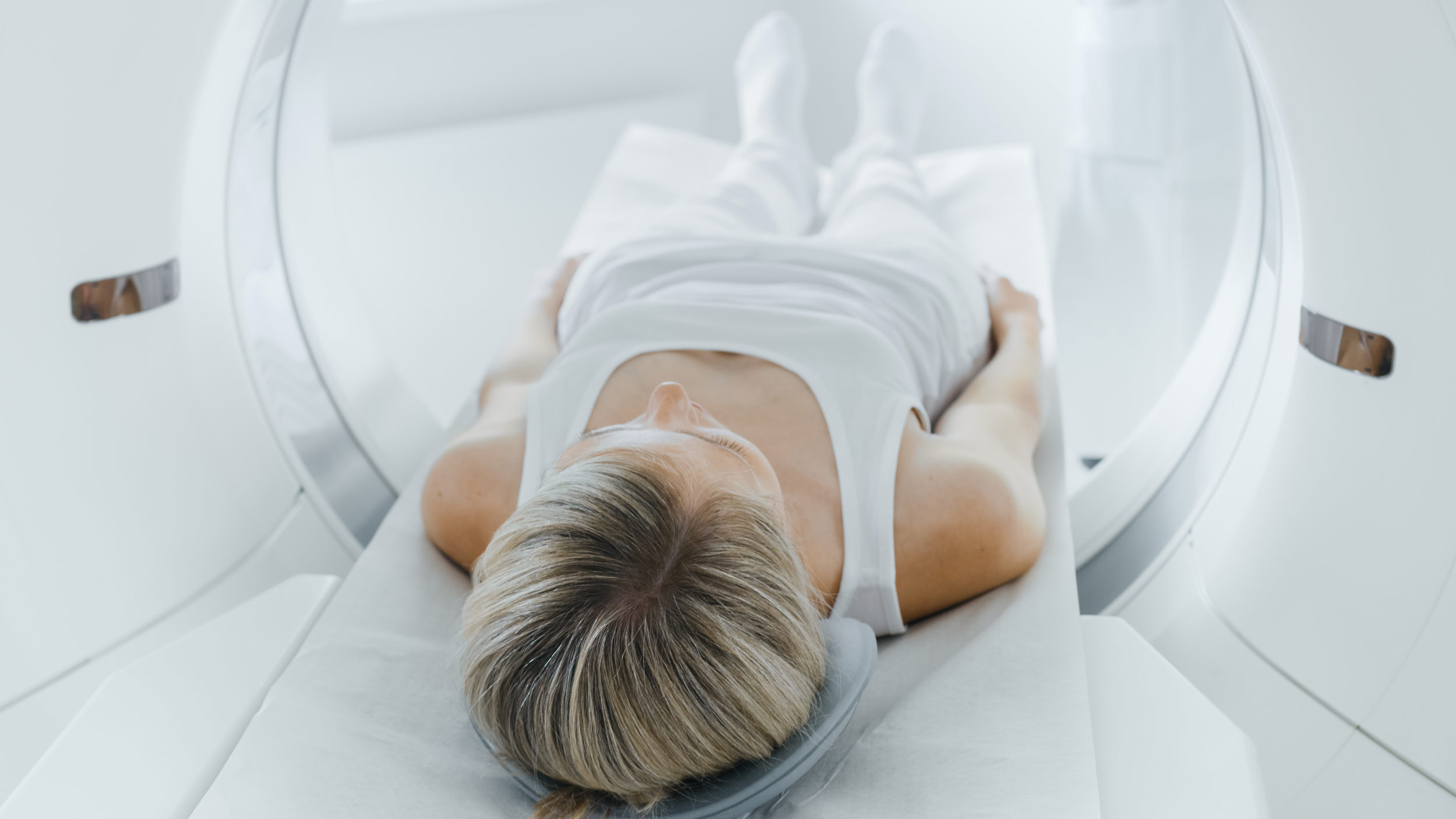
We can scan all the different areas of the body.
Brain
Chest
Breast
Abdomen
Lumbar spine
Cervical
Hand
Prostrate (Male)
Full body
Musculoskeletal
Knee
Foot
Ankle
We understand that many people suffer from anxiety or claustrophobia, making an MRI a daunting experience.
At SRG we are here to help, and our highly experienced staff are trained to assist patients who may be claustrophobic or highly anxious.
Latest MRI technology offers a range of features that can help improve the experience and comfort level for these patients. We do also recommend that our patients speak to their referring practitioner, and to our friendly booking team to discuss all options. This will ensure we are able to provide the best possible experience for our patients. Don’t let fear or uncertainty hold you back from taking care of your health.